 Sivitas
Roles & permissions
The roles Sivitas ships with, what each one is for, and how administrators manage the role-permission matrix.
Access in Sivitas is role-based. A user can hold several roles, and administrative roles can be scoped to a study program or research group so that the holder sees only their own unit.
Standard roles
| Role | Typical holder | What it unlocks |
|---|---|---|
| Super Administrator | System owner, academic office lead | Everything, including Setup, Settings, Audit Trail and RBAC |
| Department Administrator | Faculty or department academic office | Programs, course offering, faculty assignment, enrollment, people |
| Study Program Administrator | Program secretariat | The same, scoped to one study program |
| Research Group Administrator | Research group or expertise group head | People grouping, faculty assignment review, FS/FQ data for their group |
| Faculty | Lecturer | Teaching console, syllabus, own achievements and activities, peer review, DUPAK submission |
| Student | Student | Enrolled classes, grades, surveys, attendance, final project |
| Course Assignment | Scheduling and allocation staff | Class & Teaching Assignment including AI scheduling |
| AoL Team | Assurance of Learning coordinators | AOL module, assessment mapping and reports |
| Accreditation Team | Accreditation office | FS/FQ/IC, AACSB configuration, BSQ |
| TPAK Administrator | Credit-point assessment team | DUPAK review and final approval of achievements |
| Data Integration Team | IT or data office | Data sync screens |
| Final Project Student / Final Project Advisor | Final-year students and their advisors | The student and advisor sides of Final Project |
Assigning roles to a user
- Go to Sidebar › People › User Role › Roles.
- Select a role to see its current members.
- Click Add user, search by name or email, and confirm. For scoped roles, choose the study program or research group.
- To remove, open the member list and use the remove action on the row.
The role-permission matrix (RBAC)
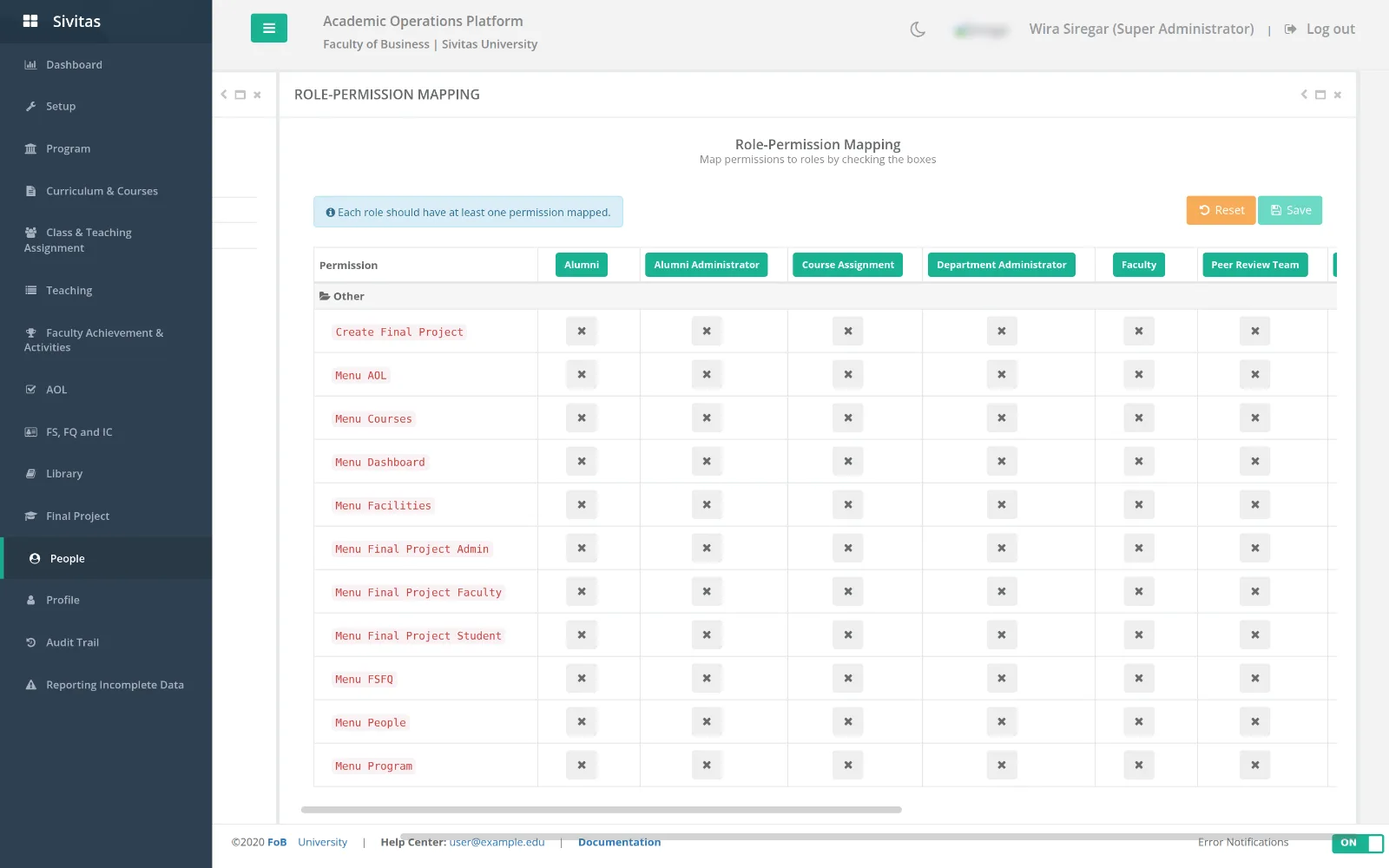
Administrators who need finer control than the standard roles use People › User Role › RBAC, which has three tabs.
- Roles. Create, rename, enable or disable a role. Disabled roles keep their members but grant nothing.
- Permissions. Each permission belongs to a module. Filter by module or search by name.
- Mapping. A grid of roles across permissions. Tick or untick a cell, or use toggle column to grant or revoke a permission for all roles at once. Every role must keep at least one permission. Save applies the change; Reset discards it.
Changes in the matrix take effect at the user's next page load. Removing a permission from the Super Administrator role can lock you out of the module that manages permissions. Keep at least one account with the full role.
Where roles apply
Module visibility is decided by role, but many pages also check scope. A Study Program Administrator with two programs sees both in the term selector and no others. Faculty see only classes assigned to them in Teaching, and only their own records in Achievements and DUPAK.