 Sivitas
AI scheduling
Produce a term timetable and lecturer allocation from your rules with a constraint solver, review the drafts, and publish.
The AI scheduling module turns the course offering for a term into a weekly timetable, with rooms and lecturers assigned, and lets you review and publish the result. It appears in the sidebar when the module is enabled for your institution.
How it works
- You describe the rules once: which rooms each program may use, when lecturers are unavailable, how cohorts move through the week, where exams sit in the meeting sequence, how long it takes to travel between campuses.
- The rules compile into a model specification. A named person reviews and approves it.
- Generate sends the term's classes, rooms, lecturers and the approved rules to a constraint solver running on your server. It places everything at once, proves the result optimal or reports how far it is from optimal, and lists any class it could not place together with the rules that blocked it.
- You review the draft, fix or pin what you need, compare alternatives, and publish. Publishing writes the schedules and faculty assignments that the rest of Sivitas uses.
A full term of roughly 390 classes across 126 rooms and 140 lecturers solves in under a minute on a 16-core server. Large language models are used only for parsing documents, mapping free-text course interest to courses, and the assistant; the timetable itself is produced by the deterministic solver.
Before the first term
Work through the Masters pages once. Most of them can be cloned from a previous academic year the next time round.
Holidays calendar
Public and institutional holidays for the academic year. Click Sync to pull the dates parsed from the official academic calendar in Setup, then add or remove dates. No class is placed on a holiday.
Room pools
Per study program, tick the rooms its classes may use. A class without a pool falls back to any room of sufficient capacity. Cohort tags on rooms (see Facilities) give the solver a preference within the pool.
Scheduling constraints
The rule catalogue. Each rule has a key, a level (institution, program, course or lecturer), a value and a reason. Typical rules:
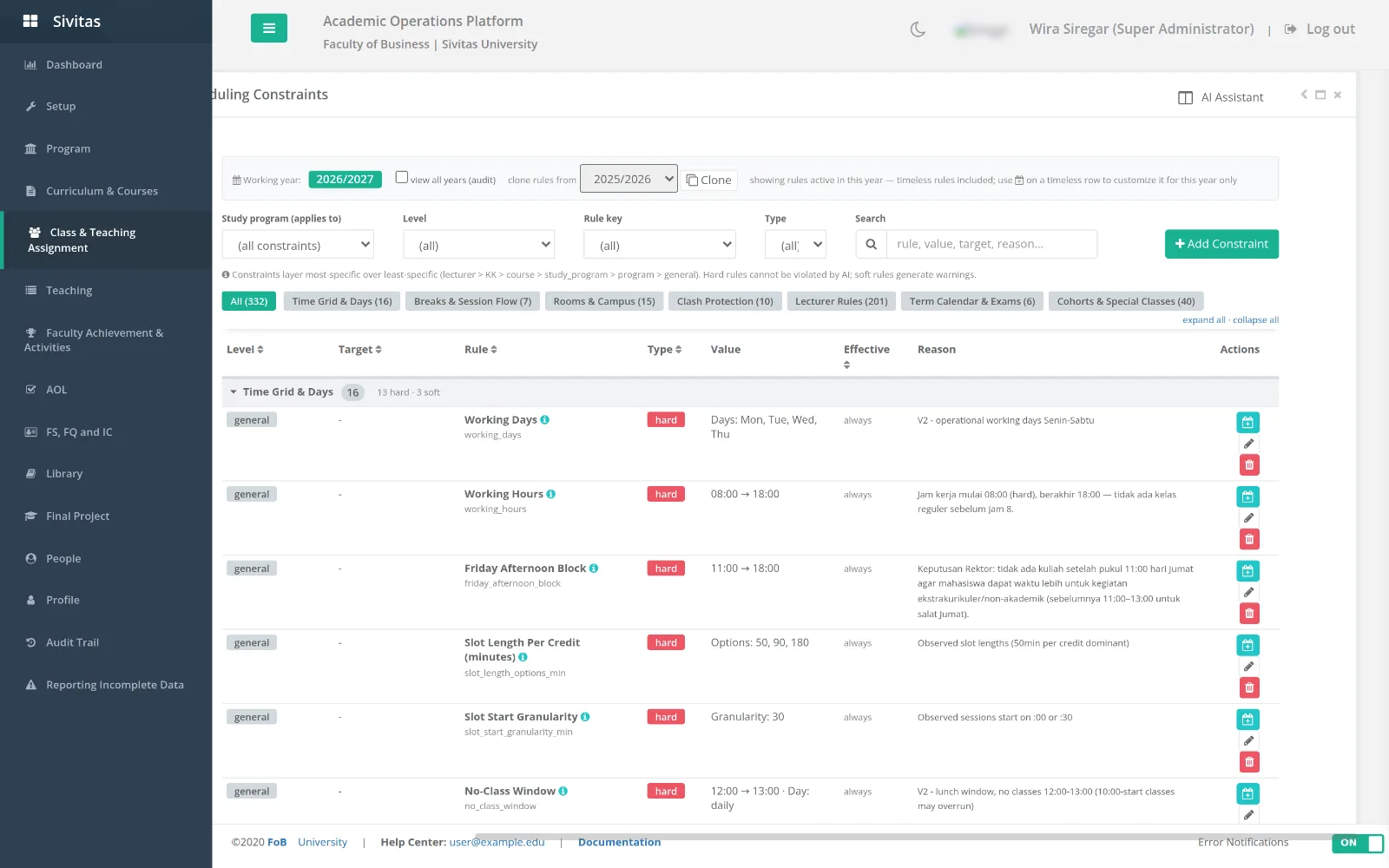
- meeting pattern per course (for example two sessions of 100 minutes, or one of 150),
- canonical start times and a break after long sessions,
- forbidden windows (no classes during a weekly faculty meeting),
- daily teaching cap per lecturer,
- exam placement: mid-term mid-sequence, final in the last meeting, both taking a longer slot,
- composition rules for courses that must run in parallel or must not,
- courses without sessions (thesis, capstone) that are excluded from the timetable and allocated a nominal load to the program head,
- team-teaching, part-time and visiting-lecturer waivers,
- courses taught by external lecturers, which are scheduled but skipped in allocation.
Use Clone from year to copy last year's rules into the new academic year, then adjust. Every change is versioned and, if enabled, the reason text is tidied by the language model on save.
Cohort schedule templates
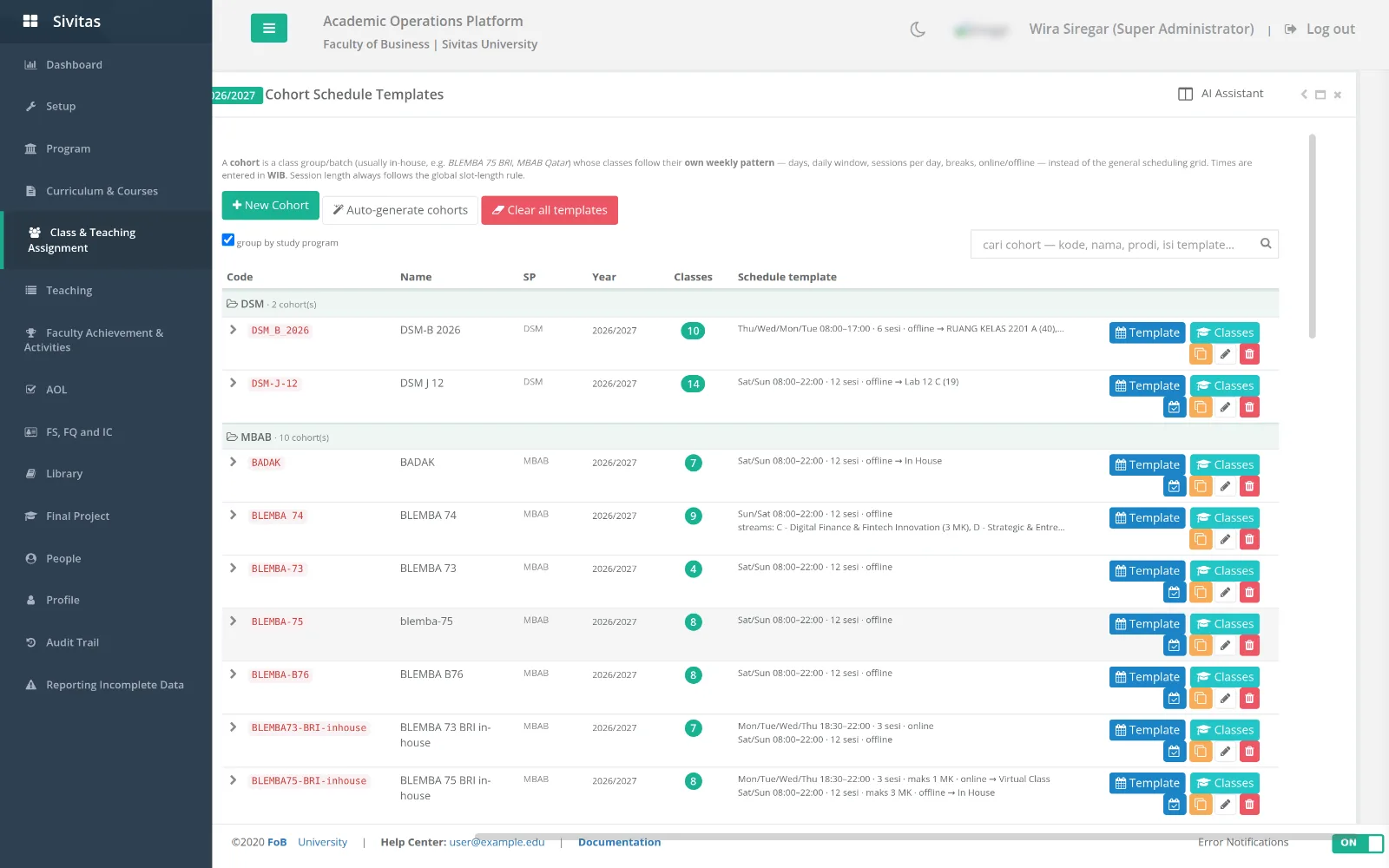
A cohort is a group of students who take the same classes (a batch group). The template describes the cohort's weekly pattern: which days and blocks are available, protected windows, and non-standard patterns such as biweekly blocks. Auto generate proposes a template from the cohort's course list; Clone cohort copies one to another.
Teaching candidates
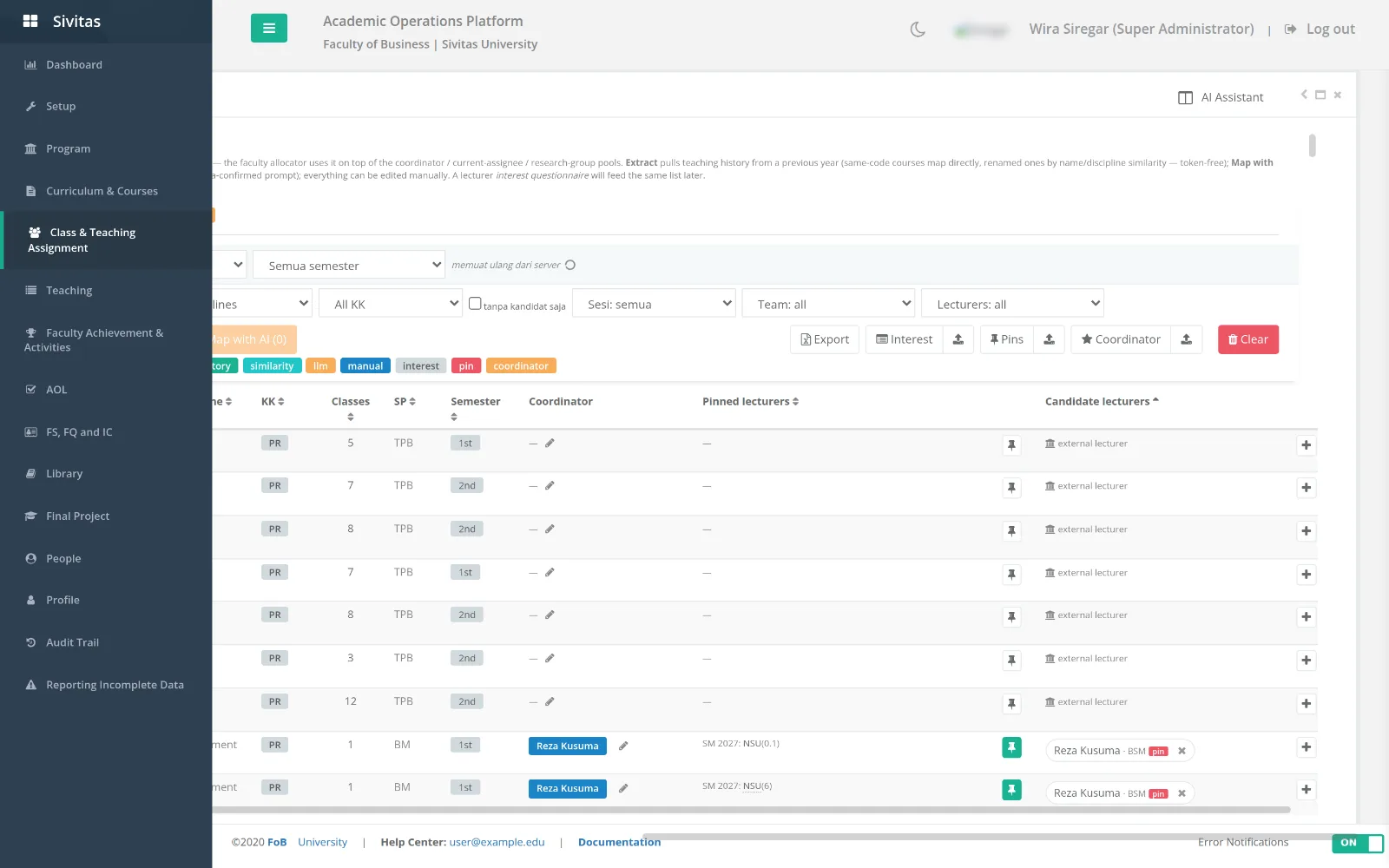
Which lecturers can teach which courses. Sources: the course's history, the lecturer's discipline and qualification, and free-text teaching interest submitted by lecturers. Map with AI turns the free text into course matches for you to confirm. Export and import the list as Excel, including pins (a lecturer who must teach a course) and coordinator templates. Toggle external lecturer course on university-wide courses taught from outside the faculty.
Fixed schedule
Classes that must sit in a specific slot and room, for example a joint class shared with another faculty. Enter them directly or import from Excel; the import shows a preview and applies only after you confirm.
Lecturer constraints
Per lecturer: unavailable days and windows, maximum sessions per day, preferred campus, discipline tags, and whether the lecturer is full-time, part-time or visiting. Lecturers cannot edit this page themselves; the program office enters what they submit. Bulk save applies a whole table at once.
Approve the model specification
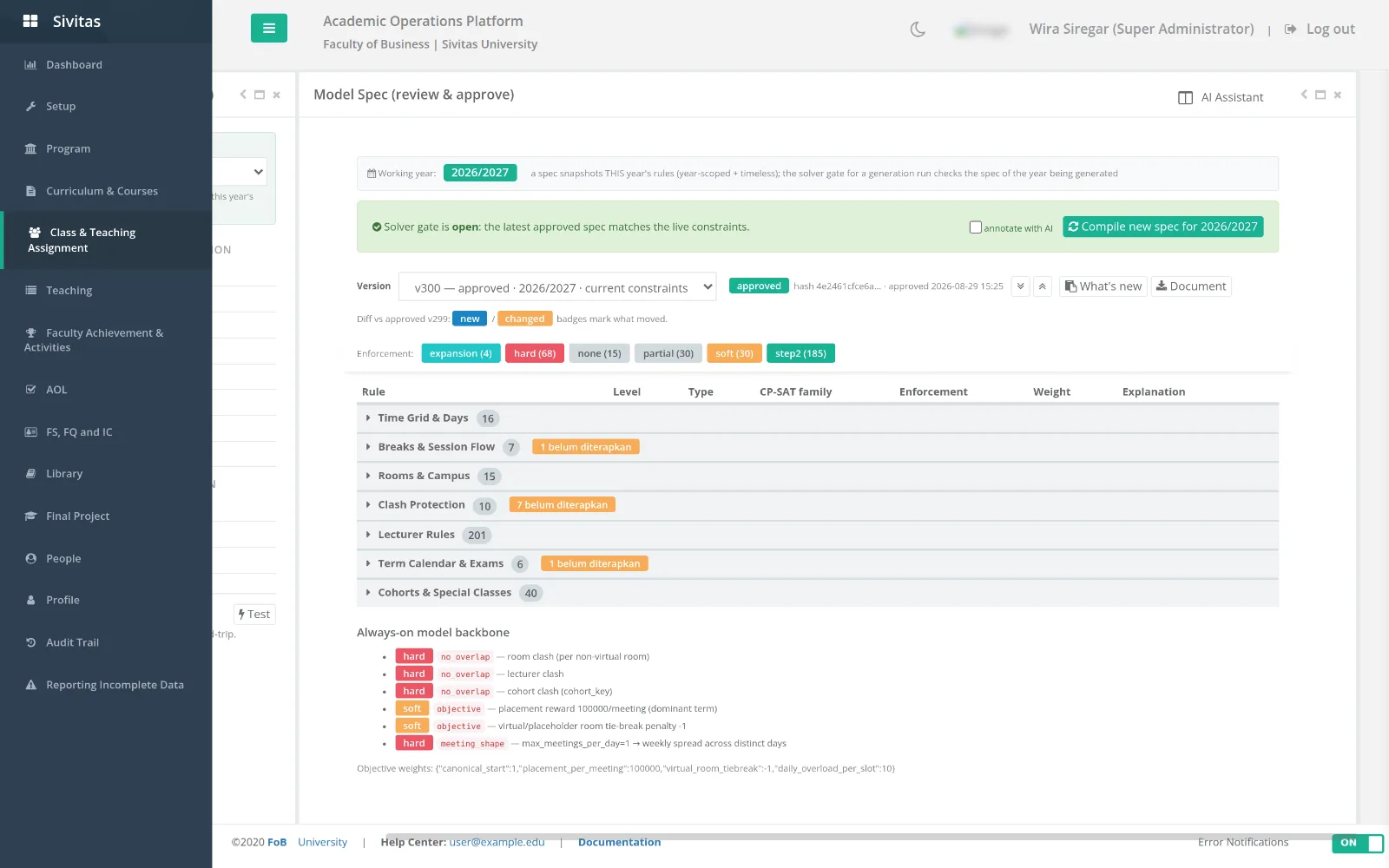
Model Spec shows the current compiled specification: every active rule, how it is encoded, and a plain-language annotation. When constraints change, the spec shows a diff against the last approved version. Click Approve to authorize solving with this version. Generation is refused while the live constraints differ from the approved spec, so the timetable you get is always the one somebody signed off.
Generate a schedule
- Open Generate AI Schedule, choose the academic year and semester, and optionally give the run a scenario name.
- Choose Solve term for one semester or Generate for a year for both semesters together.
- Watch the progress log. The solver reports a heartbeat, the best solution so far and its distance from optimal. It stops when the result is proven within one percent of optimal, when it has not improved for five minutes, or at the outer time limit.
- The result is saved as a draft.
Review a draft
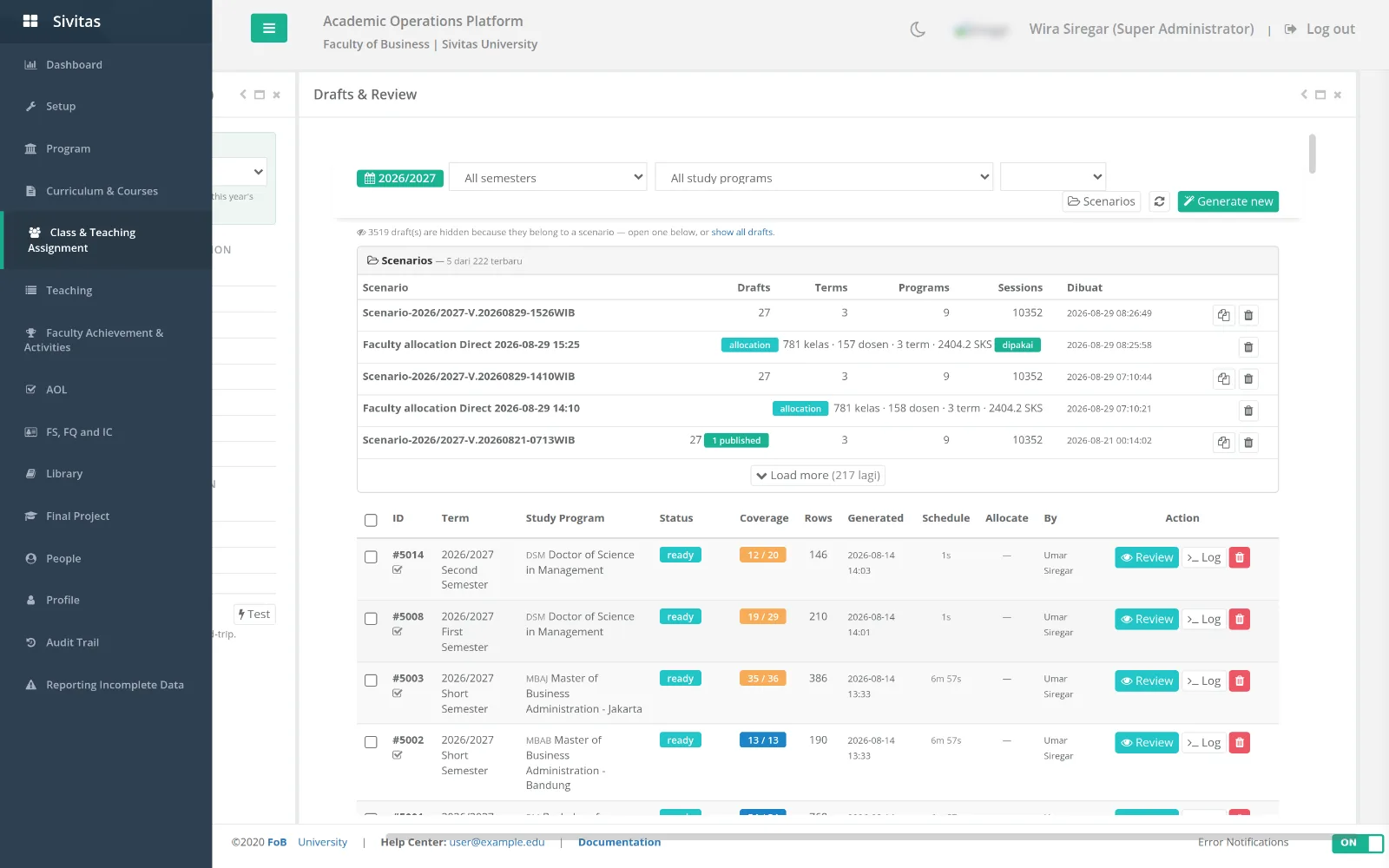
Drafts & Review lists drafts by term and scenario. Open one to see:
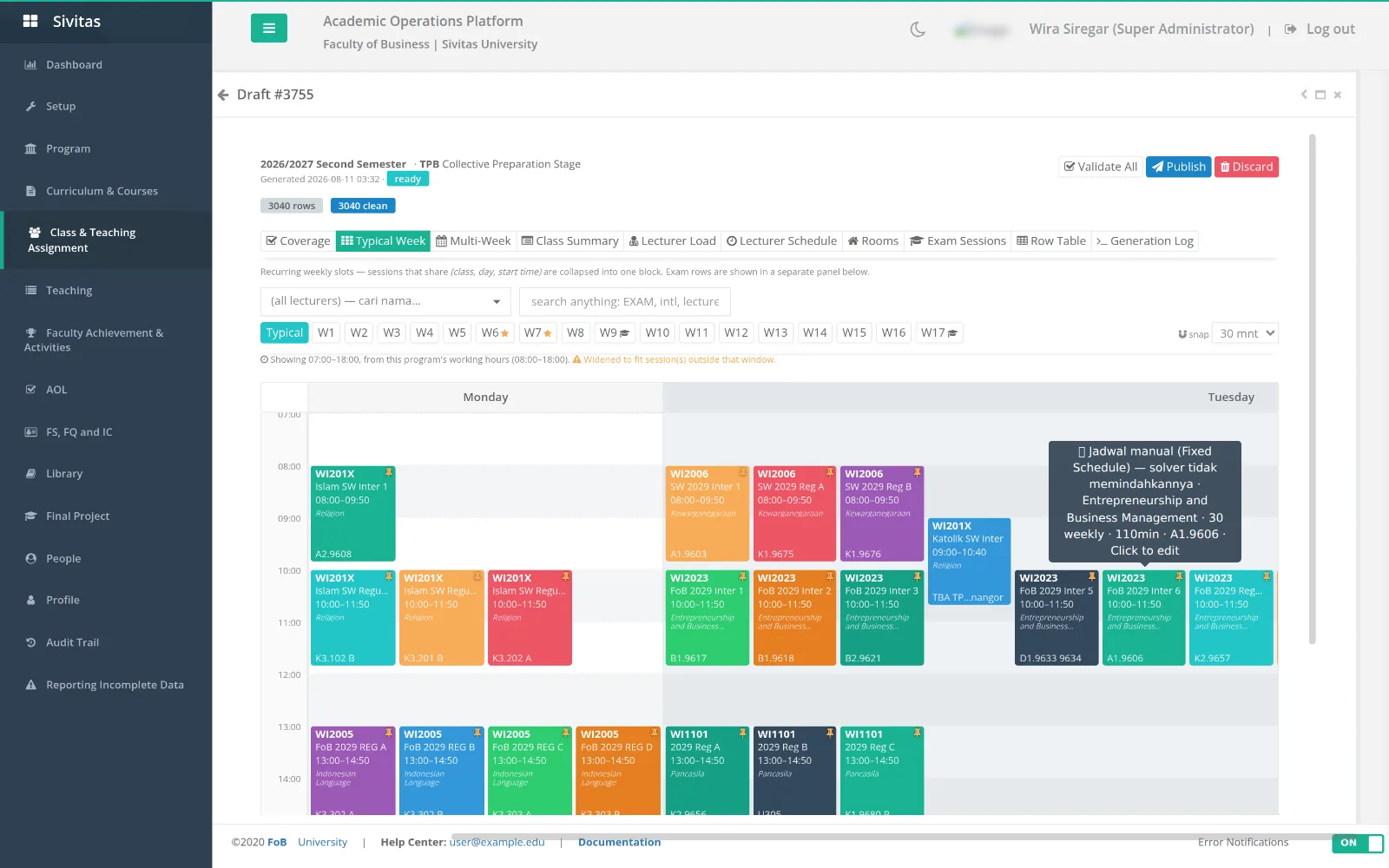
- the weekly grid per cohort, room or lecturer,
- Validate all, which re-checks every hard rule and lists violations,
- the unplaced classes panel, each with the constraints that blocked it,
- row-level editing: move a class, change its room, pin it so the next run keeps it.
Group drafts into scenarios to compare, for example, a version with a stricter daily cap against one without. Delete drafts you no longer need; a published draft cannot be deleted.
Publish
Publish writes the draft's schedules and faculty assignments into the live term. Before writing, Sivitas runs a dry run and lists what would change, including any class that already has a protected or locked schedule. Confirm to apply. Use Force only when you intend to overwrite protected rows, and expect it to be recorded in the audit trail.
Term overview
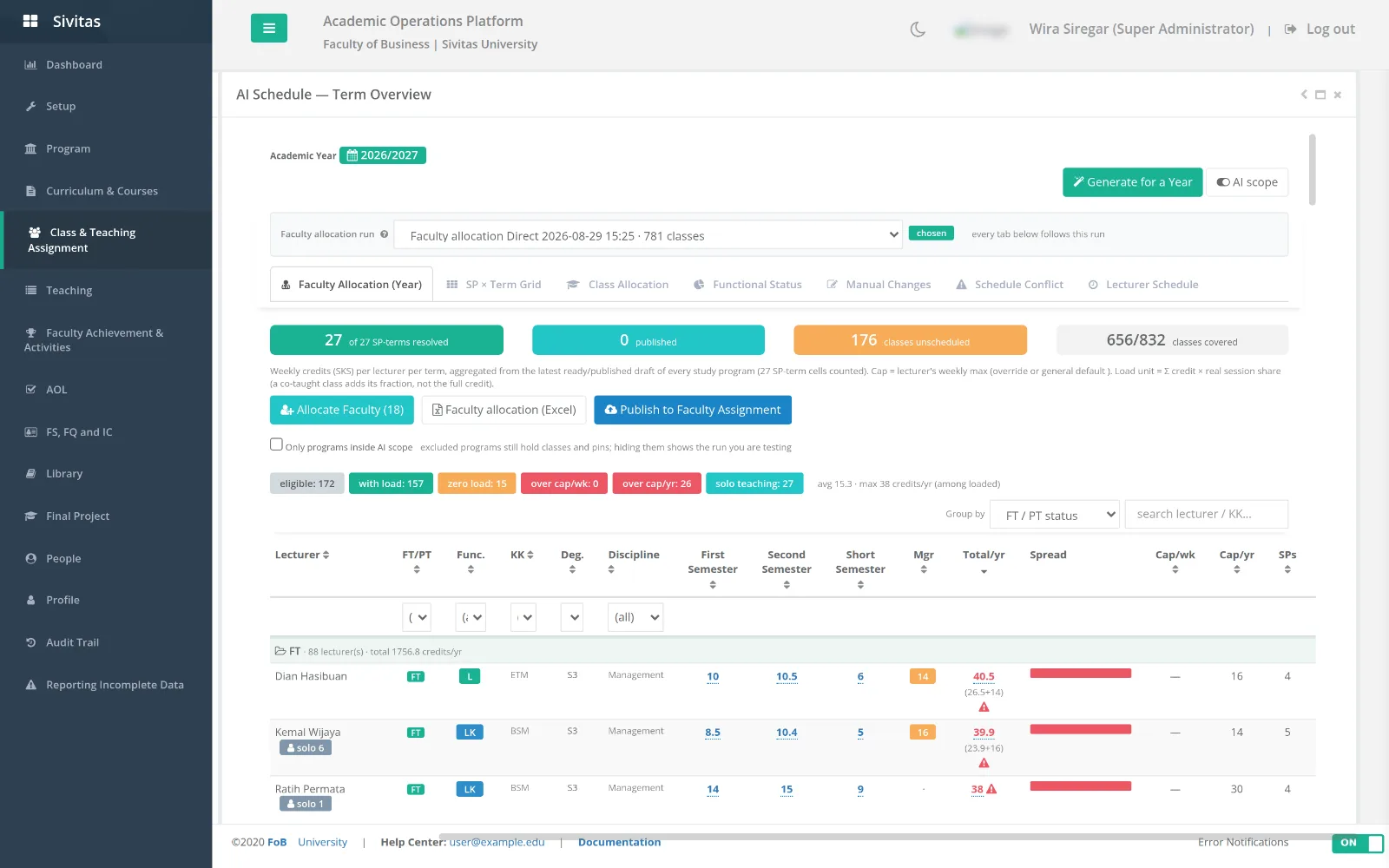
After publishing, Term Overview shows pivot tables of the term: load per lecturer, allocation by function and status, sessions per room. Download the department review workbook (Excel) for circulation, and the typical-week and conflict workbooks for the scheduling office.
The scheduling assistant
A chat panel on the AI scheduling pages. Describe a change in plain language, for example "Professor X cannot teach on Wednesday mornings" or "keep all first-year classes on the main campus". The assistant proposes the exact constraint rows to add or change; review them and click Apply proposals. Applied changes go through the same versioning and model-spec approval as manual edits.
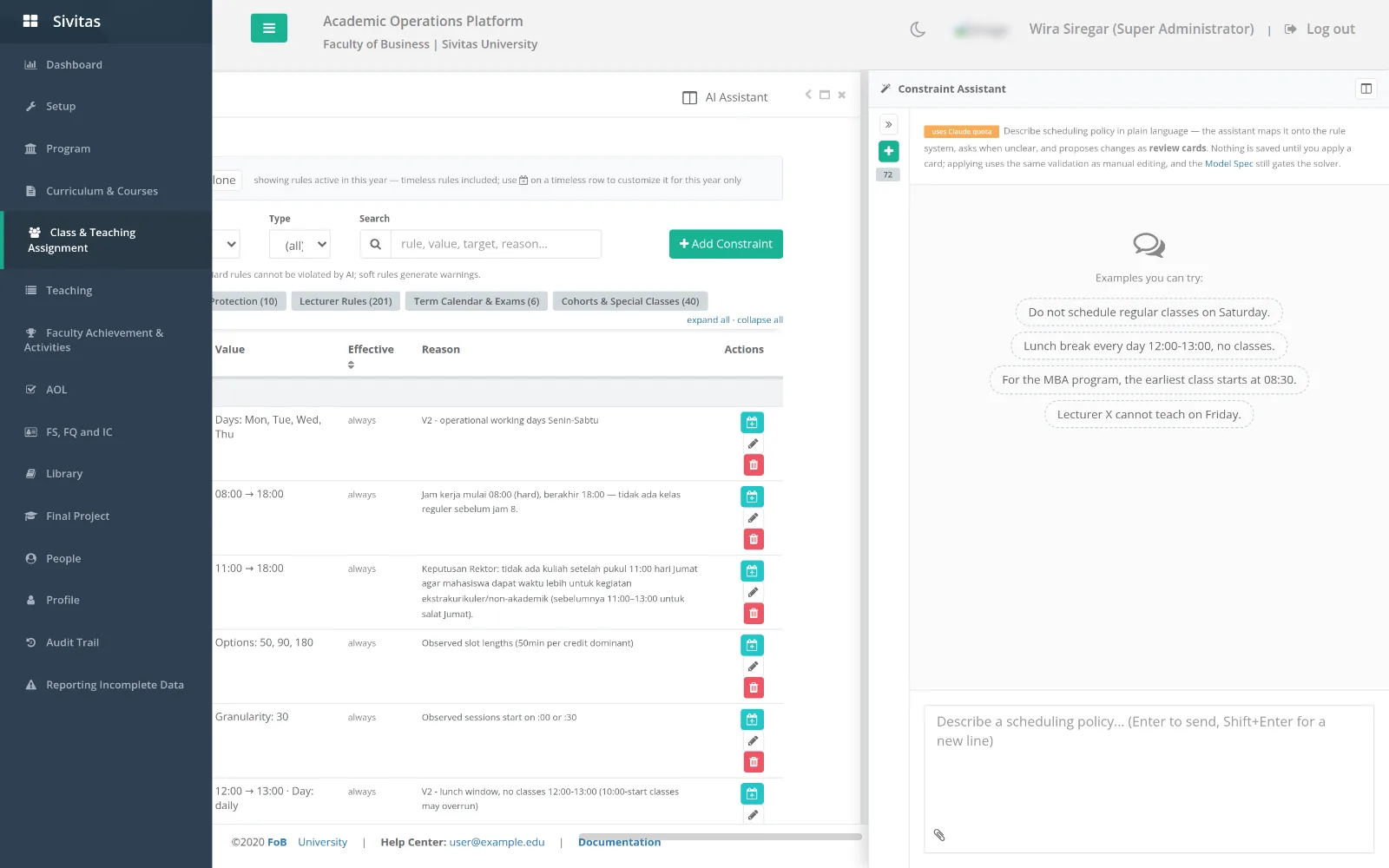
The assistant and the parsers use a language model and consume your institution's model quota. Batch runs such as re-mapping every teaching-interest submission should be started deliberately, not repeatedly.
Troubleshooting
- Generate is greyed out. The model spec is not approved, or it no longer matches the live constraints. Open Model Spec and approve the current version.
- Many unplaced classes in one program. Usually the room pool is too small or the cohort template leaves too few blocks. Widen one, re-run, and compare as a new scenario.
- A class landed on a day a lecturer said they were unavailable. Check Lecturer constraints for that lecturer and term; constraints are per academic year and must be cloned forward.
- The solve ran longer than expected with no progress. The progress log shows a heartbeat every 15 seconds. If the newest entry is more than a minute old, the run has stopped; start a new one.