 Sivitas
For lecturers
A term in Sivitas from the lecturer's seat: what you see, what you are asked to do, and when.
Sivitas asks a lecturer for a small number of things at fixed points in the term. Everything else is there for you to read: your schedule, your load, your qualification status, your students.
What you see when you sign in
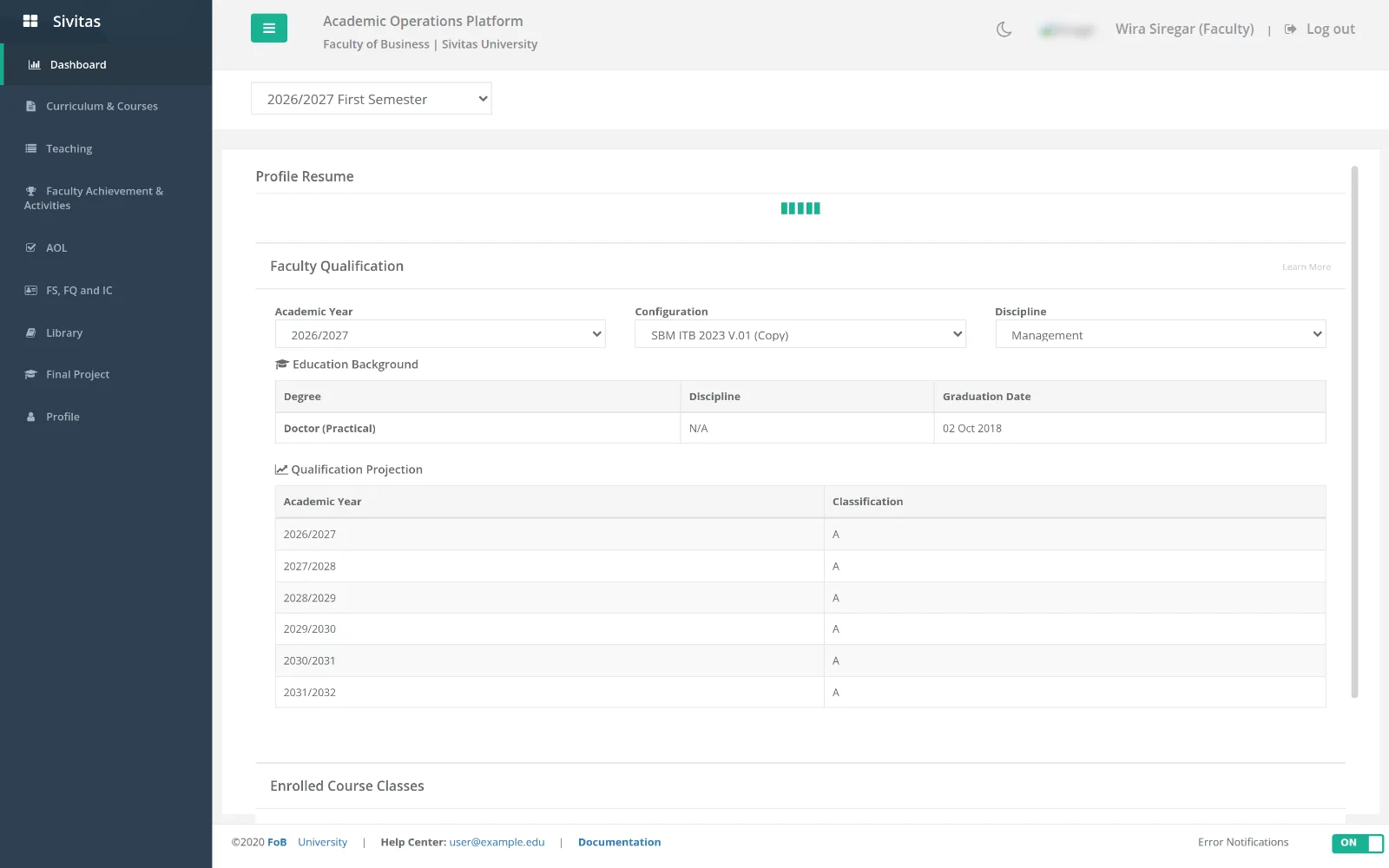
Your dashboard shows your profile summary, your qualification status with a projection chart, and the course classes and syllabi assigned to you in the selected term. The sidebar contains only what the Faculty role uses: Dashboard, Teaching, Curriculum & Courses, Faculty Achievement & Activities, Final Project, Library and Profile, plus Class & Teaching Assignment in read-only form.
If you hold several roles (for example Faculty and Study Program Administrator), switch between them from the menu under your name in the top bar. Each role shows its own sidebar.
Before the term
- Tell the program office when you cannot teach. Unavailable days and windows, preferred campus and daily limits are entered on your behalf in Lecturer constraints. Send them to your program office before the timetable is generated; they are per academic year.
- Confirm your teaching interest. Where your institution collects it, submit the courses you want to teach. The office maps your free text to the course catalogue and you confirm the result.
- Check your assignment. Once the timetable is published, Class & Teaching Assignment › Review by faculty lists your classes, credits and sessions for the term. Report problems to your program office; you cannot edit the assignment yourself.
Writing the syllabus
Open Curriculum & Courses (or Syllabus, depending on your institution's menu), pick the term and your course, and work through the tabs: general info and course outcomes, the week-by-week course plan, the grading policy, references from the shared library, your response to last cycle's improvement plan, and the validation checklist. Submit for approval when every item is green. See Curriculum & syllabus.
During the term
Everything for a running class is in the Teaching console:
- Attendance per session, with a seating chart where the room has one.
- Course plan and session report: record what was actually delivered against the plan.
- Grading: enter or import marks per grading component, Verify, then Finalize to release grades to students. The policy you set in the syllabus fixes the weights.
- Learning assessment: if your class is sampled for Assurance of Learning, score the sampled work against the rubric and print the recapitulation.
- Google Classroom: open the linked classroom and push the roster if your institution has connected Google Workspace.
Your record
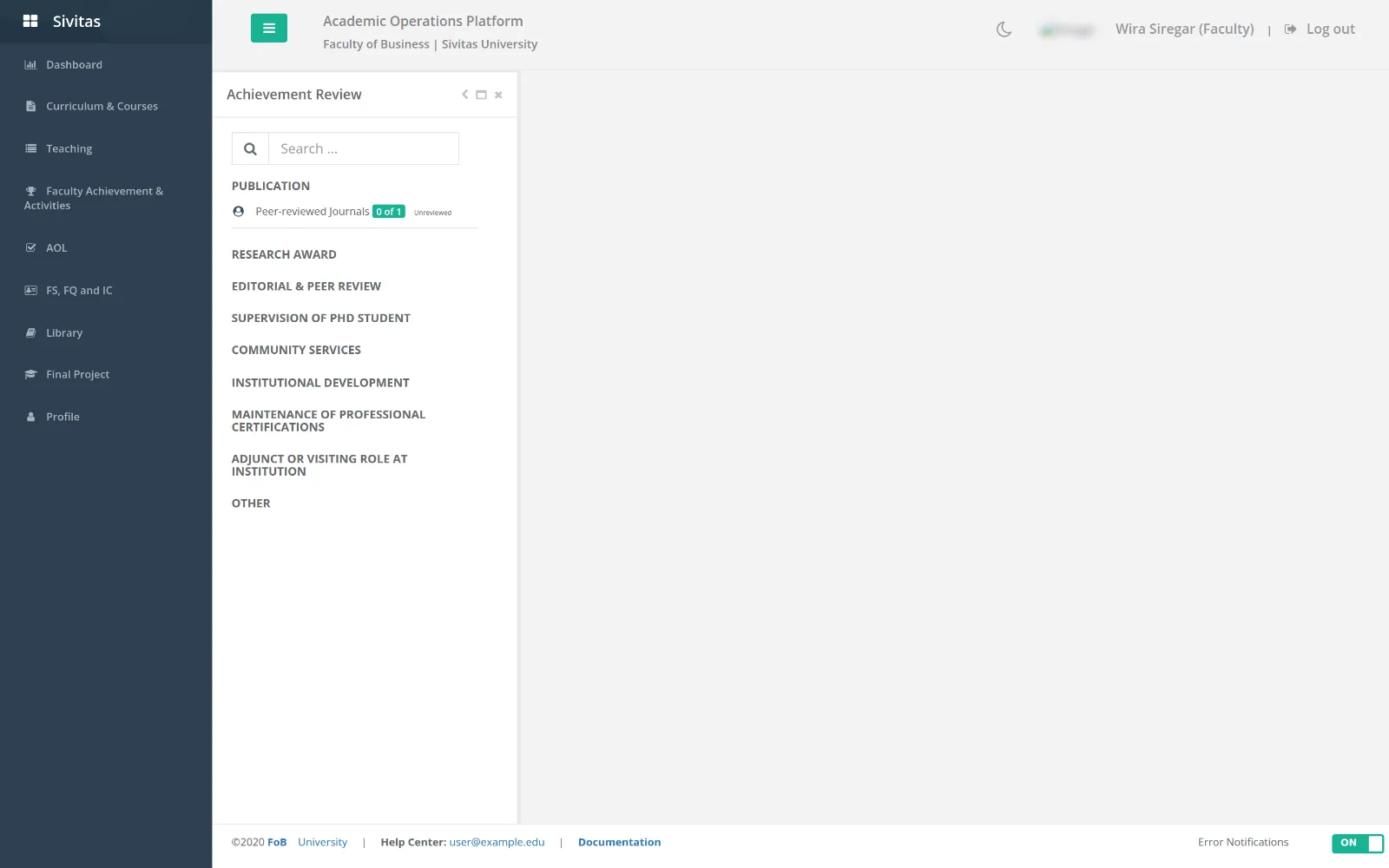
- Faculty Achievement & Activities is where you log publications, grants, editorial work, supervision, service and professional development, each through a standard form with evidence attached. Items go to peer review and approval and then count toward your qualification. See Faculty achievements & activities.
- Review appears when you are a peer reviewer: score colleagues' submitted items and see the score distribution.
- Profile › Faculty Qualification shows your current accreditation status and what maintains it.
- Profile also holds your education, HR, bank and family tabs and your password.
Supervising final projects
With the Final Project Advisor role, Final Project lists students who named you as advisor. Accept requests, comment on proposals, confirm consultation entries and approve defense requests. See Final project.
End of term
- Finalize grades for every class.
- Complete the session report and export the Final report (course portfolio) if your program collects it.
- Respond to the improvement plan for your course in the next syllabus cycle.